Image to editable PPT
Upload a screenshot of a slide, an AI-made slide image or any picture. The text comes back as real PowerPoint text boxes, every other element as its own movable picture, and the background is repainted behind them.
Layers
Resolution
Auto finds every element (up to 16 per pass). Billed per output: at most 17 credits a pass (17 images). A busy image runs up to 4 passes, and you can stop between them. Takes about 56–138 s.
New here?
Short answer
To turn an image into an editable PowerPoint slide, upload it above, press Split into layers, then choose Download PPTX. Each line of regular-size text is read and placed as a real text box in a common Office font of the same style, colour and size; icons, photos, shapes and chart parts become separate pictures at their original positions, cut from your image rather than redrawn; and the background is repainted where they were, so you can move or delete anything. One image makes one slide. Charts stay pictures, not editable chart data, and very large or decorative lettering may stay a picture too. The first split is free after Google sign-in.
How to convert an image to an editable PPT
- 1Take a screenshot of the slide or save it as PNG or JPG (for a PDF, export the page as an image first).
- 2Upload it above, or paste it with Ctrl+V / ⌘V, and press Split into layers. The text is read first, then the rest of the image is split.
- 3When the layers are ready, press Download PPTX.
- 4Open the .pptx in PowerPoint, Keynote or Google Slides and edit the text boxes, or move and delete the pictures.
What comes out editable
| Part of the image | In the PowerPoint file |
|---|---|
| Titles, bullets, labels, footers | Real text boxes you can retype, in Arial, Times New Roman, Impact and other common Office fonts matched by style, with the original colour, weight and alignment |
| Very large or decorative lettering | Usually a picture, like a logo; regular-size text is what gets read |
| Icons, logos, shapes, photos | Separate pictures with transparent backgrounds, at their original size and position |
| Charts and tables | Pictures (in the sample each bar is its own picture); labels may be read as text, but there is no chart data behind them |
| Background | One full-slide picture with the area behind every element repainted |
| Several slides, animations, speaker notes | Not included: one image makes one slide |
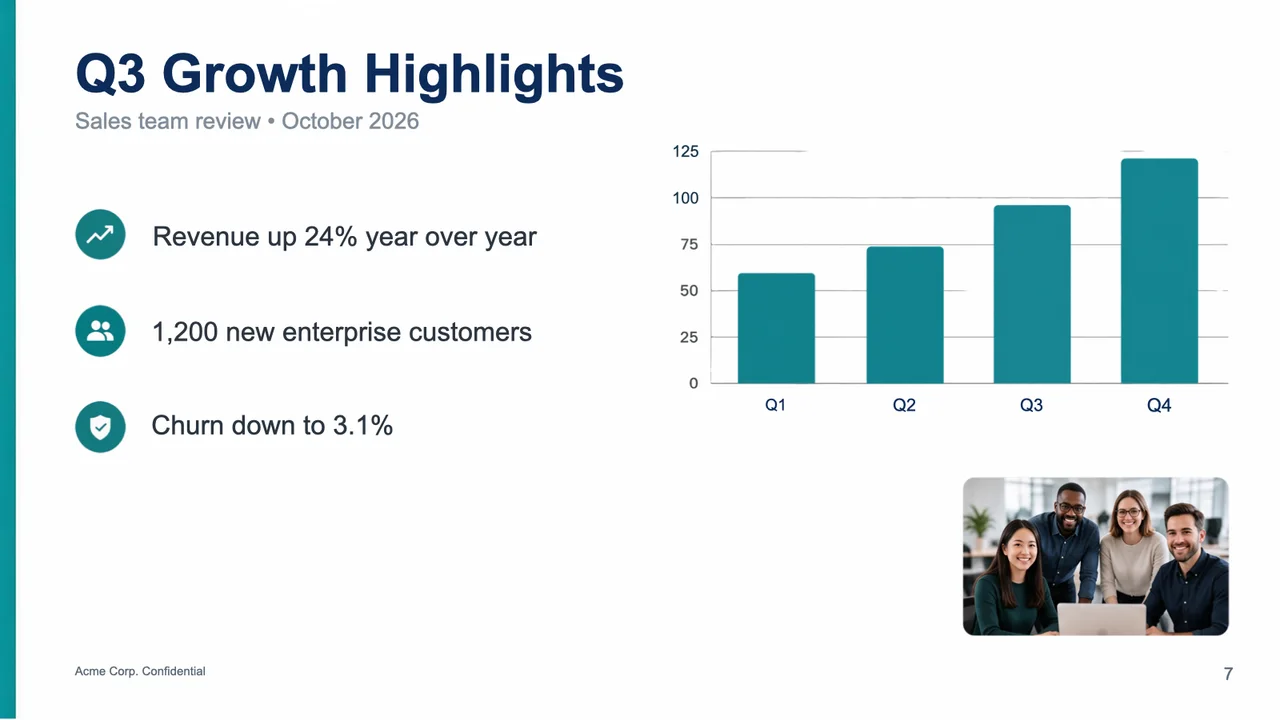
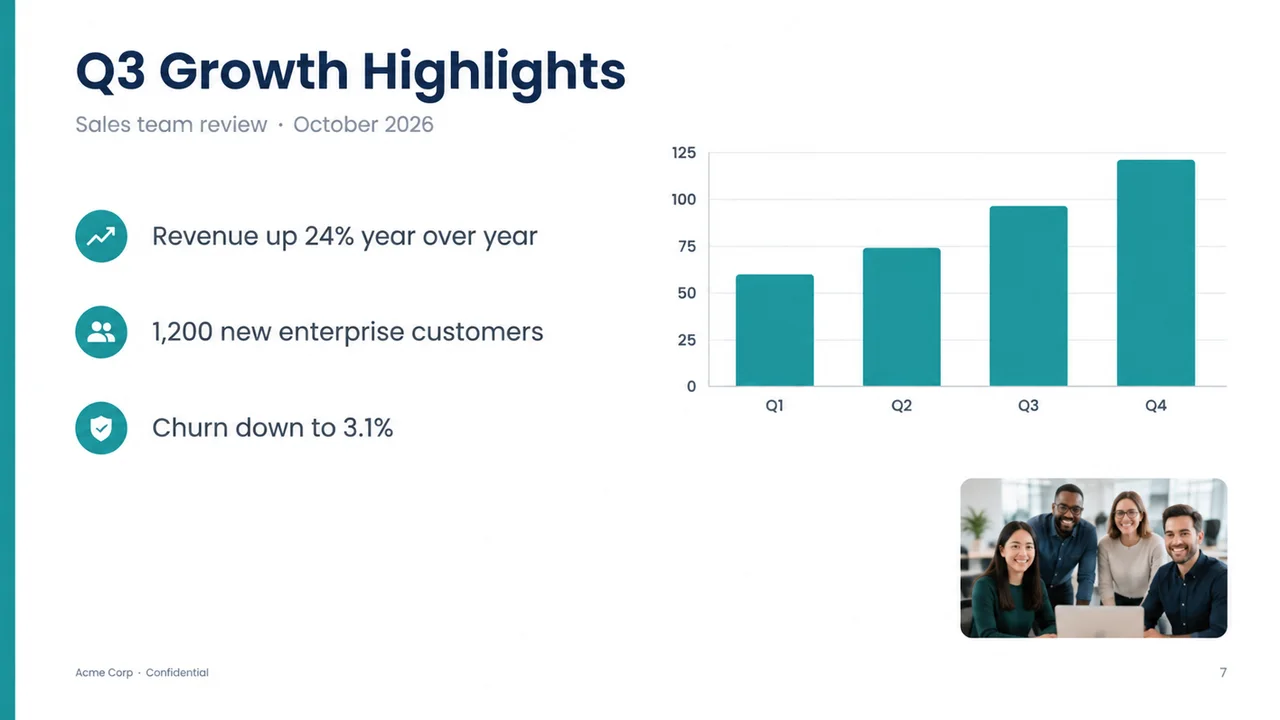
A real slide screenshot, converted
This slide was generated as a flat image, then run through the site as you would: 17 lines of text were read in 14 seconds, and the split on Seedream 5.0 Flash at 2K took 59 seconds for 10 credits. The PowerPoint file has 13 editable text boxes and 9 pictures (three icons, the chart axis, four bars and the photo) over the repainted background. Four axis numbers that touch the grid lines stayed part of the chart picture, and the reader added a full stop after "Acme Corp", so read the text over before you present. This run used the reader paid credits use; the free try uses a lighter one that can miss more lines.
Other ways to get an image into PowerPoint
| Way | What you get | When it fits |
|---|---|---|
| Insert → Pictures in PowerPoint | The image as one flat picture; nothing inside it can be edited | You only need to show the slide |
| Retype the slide by hand | A fully native slide, with your own fonts and real charts | Short slides, or when charts must stay live data |
| Converters that redraw the slide | Text and shapes rebuilt as native PowerPoint objects | Simple layouts; compare the result with the original |
| LayerPSD | The original pixels of every element, text as text boxes, the background repainted | Designed slides, AI-made slides and screenshots whose look you want to keep |
Questions
Short answers on splitting, export and billing. Anything else, email us and a person replies.
How do I convert an image to an editable PPT?
Upload the image to LayerPSD, press Split into layers, then Download PPTX. Regular-size text becomes real text boxes, every other element becomes a separate movable picture, and the background is repainted behind them. Open the file in PowerPoint, Keynote or Google Slides to edit it.
Can I turn a screenshot of a slide into an editable PowerPoint?
Yes. A screenshot is the case this was built for: the titles, bullets and labels are read into text boxes, and icons, photos and chart parts are cut out as pictures in the same places. Use the sharpest screenshot you can; small, blurry text is harder to read.
Will the text be editable, and in which font?
Each line of regular-size text becomes a real text box you can retype. The original typeface cannot be recovered from pixels, so the text is set in a common Office font of the same kind (a sans serif becomes Arial, a serif Times New Roman; Chinese, Japanese and Korean text get Microsoft YaHei, Yu Gothic and Malgun Gothic) with the original colour, weight, size and alignment. You can change the font afterwards like any text.
Are charts and tables editable after the conversion?
No. Charts and tables come through as pictures, often one per part (in our sample, each bar was its own picture), and their labels may be read as text, but there is no chart data behind them. To change the numbers, rebuild the chart in PowerPoint.
Can I convert a PDF or several slides at once?
Not yet: one image makes one slide. Export the PDF page you need as a PNG (in Preview on a Mac, File → Export), split it, and repeat for each slide.
How do I make NotebookLM slides editable?
NotebookLM's help says a Slide Deck can be downloaded as a PDF or as a PowerPoint (.pptx) file from its three-dot menu. Try the PowerPoint download first. If a slide still arrives as one picture, or all you have is the PDF or a screenshot, save that slide as an image and convert it here.
Does the PPTX work in Google Slides and Keynote?
Yes. It is a standard .pptx file: PowerPoint opens it, Google Slides imports it (File → Import slides, or open it from Drive), and Keynote opens it with the text boxes intact; we checked the sample in Keynote.
How much does it cost?
Your first split is free after Google sign-in. After that a split on Seedream 5.0 Flash costs 1 credit per output layer. Downloading the PowerPoint file adds nothing, or about a tenth of a credit when some layers still need their text read.
Sources
- NotebookLM Help: generate a Slide Deck (download as PDF or PowerPoint) · checked 2026-10-14